






Practice
- Practice
- Open Practice
- Practice Overview
- Choose an Exercise
- Sounds
- Filter Sound Exercises
- Blends
- Choose How to Check Your Practice
- Auto-check
- Self-check
- Complete an Exercise
- Review Your Progress
- Practice Settings
- Results Mode
- Recording
- Pronunciation Feedback (Beta)
- Reference Images
- Get Help
- Frequently Asked Questions
Practice
Practice is a speech practice tool available on your Lingraphica device. It includes videos that show how the mouth moves to produce speech sounds, words, and phrases. You can watch and listen to each example, then practice saying it aloud.
Practice is designed for independent, repeatable speech exercises. It can be used on its own or as part of a home exercise plan recommended by a speech-language pathologist. It does not replace speech therapy or an individualized treatment plan.
Open Practice
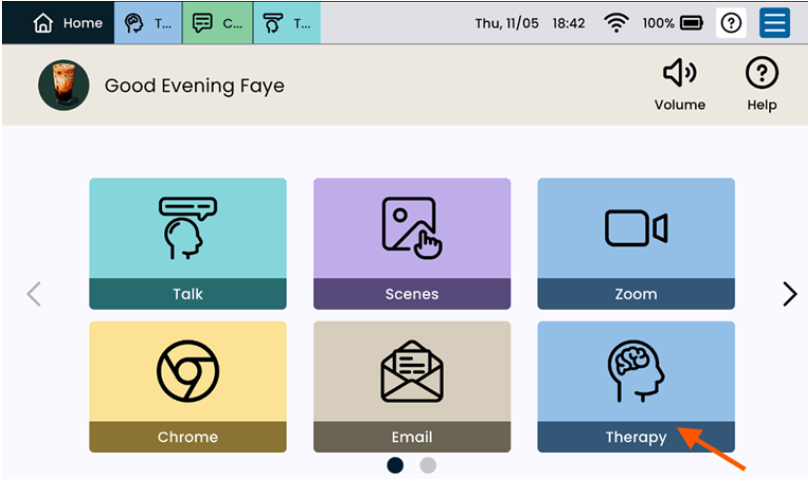
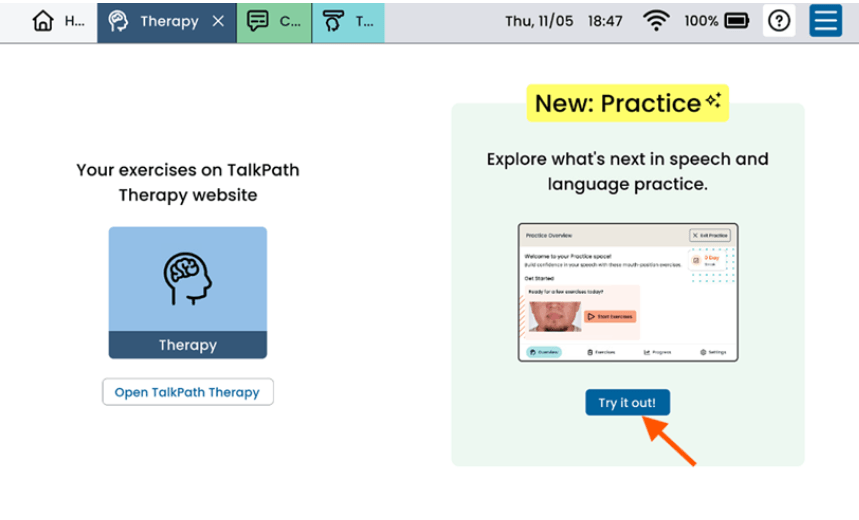
1. From the Home screen, select Therapy.
2. On the Therapy screen, select Try it out under Practice. TalkPath Therapy can still be accessed by pressing Open TalkPath Therapy.
3. Practice will open on the Overview screen.
Practice Overview
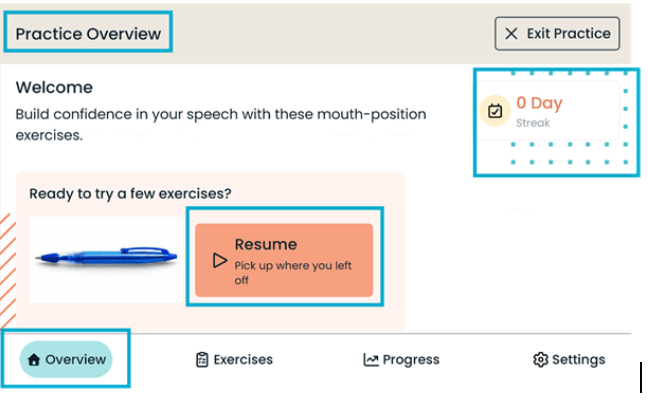
The Overview screen is the starting point for Practice. From this screen, you can:
- View your current practice streak.
- Select Resume to return to the last item you practiced.
- Use the navigation buttons to open Overview, Exercises, Progress, or Settings.
- Select Exit Practice when you are finished.
Choose an Exercise
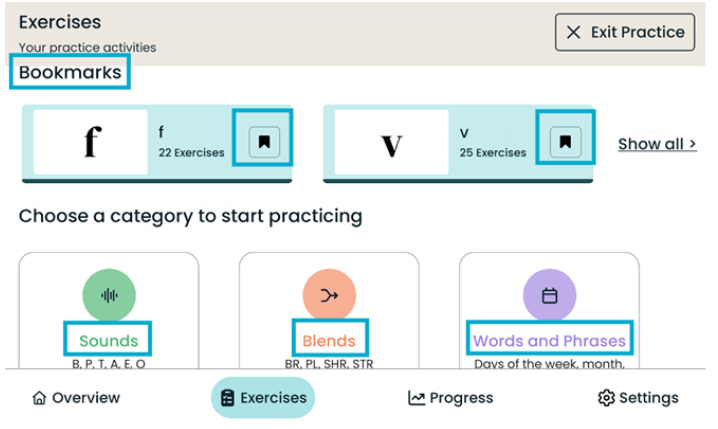
1. Select Exercises at the bottom of the screen.
2. Choose a category:
- Sounds
- Blends
- Words and Phrases
3. Select the sound, blend, word, or phrase you want to practice.
Practice also allows you to bookmark exercises you want to find quickly again. Your saved exercises appear in the Bookmarks section.
Sounds
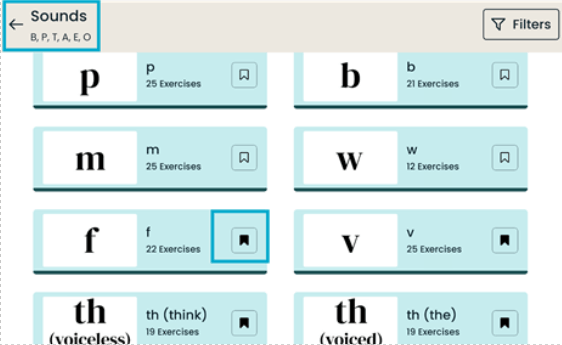
Select Sounds to practice individual speech sounds. The number shown below each sound tells you how many exercises are available. Select the bookmark icon beside a sound to save it to your bookmarks.
Filter Sound Exercises
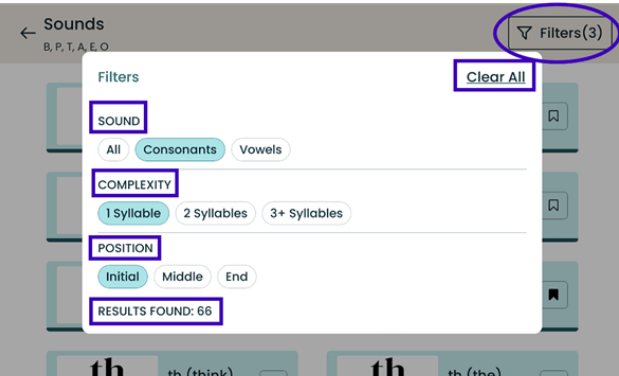
Filters can help you find exercises that match what you want to practice.
1. From the Sounds screen, select Filters.
2. Choose one or more options:
- Sound: All, consonants, or vowels
- Complexity: One, two, or three or more syllables
- Position: Beginning, middle, or end of a word
3. Select outside the filter window to view the matching exercises.
4. Results Found shows how many exercises meet the filters selected.
5. To remove the selected filters, select Clear All.
Blends
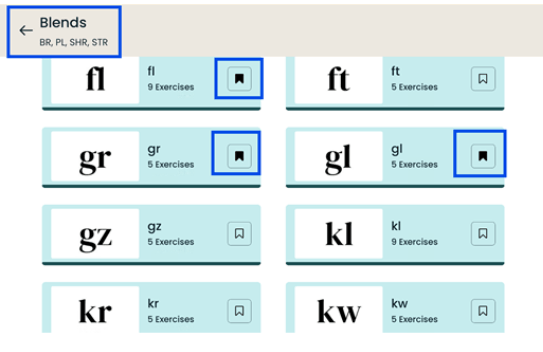
Select Blends to practice two or more consonant sounds that occur together. Select a blend to see its available exercises.
You can also select the bookmark icon to save a blend for later practice.
Choose How to Check Your Practice
Before beginning an exercise, you may be asked how you want Practice to respond to your spoken attempts.
Auto-check
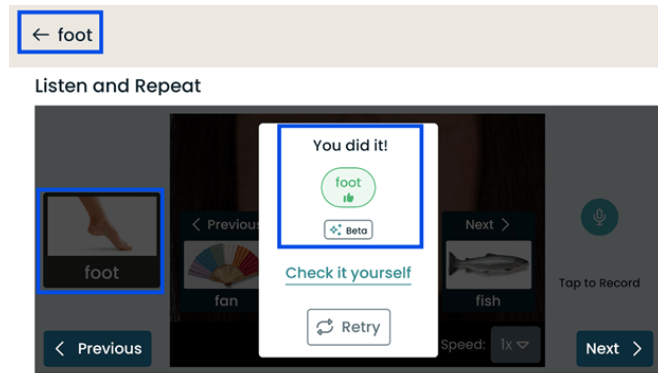
Auto-check uses Pronunciation Feedback (Beta) to provide supportive feedback after you say a word or phrase. You remain in control and can change the result by selecting Mark correct or Mark incorrect.
Auto-check is available for supported words and phrases. Sounds and blends in isolation use Self-check because individual sounds cannot be scored reliably.
Self-check
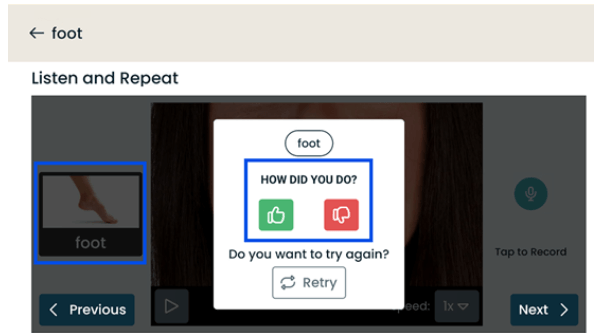
With Self-check, you decide how the attempt went. After speaking, select the positive or negative response that best matches your attempt. You can then repeat the exercise or move to the next one.
If Auto-check is unavailable, such as when the device does not have microphone permission or an internet connection, Practice may switch to Self-check automatically
Complete an Exercise
Each exercise includes a sound, word, or phrase to practice.
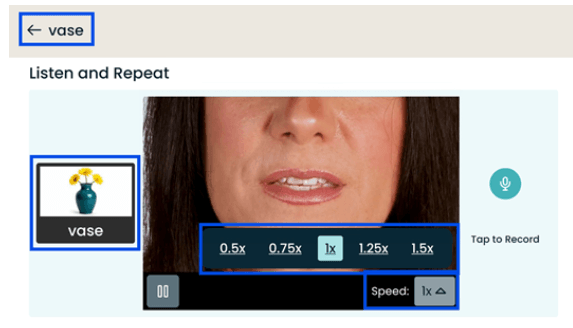
1. Watch the Mouth Position Video.
2. Listen to the example.
3. Select the microphone button when you are ready.
4. Say the sound, word, or phrase once.
5. Review the feedback or complete the Self-check.
6. Repeat the exercise or select Next to continue
7. Depending on the exercise and your settings, you may also be able to:
- View a reference image.
- Replay the Mouth Position Video.
- Change the video speed.
- Move to the previous or next exercise.
- Use Pronunciation Feedback (Beta) for supported words and phrases.
- Rate your own attempt with Self-check.
Review Your Progress
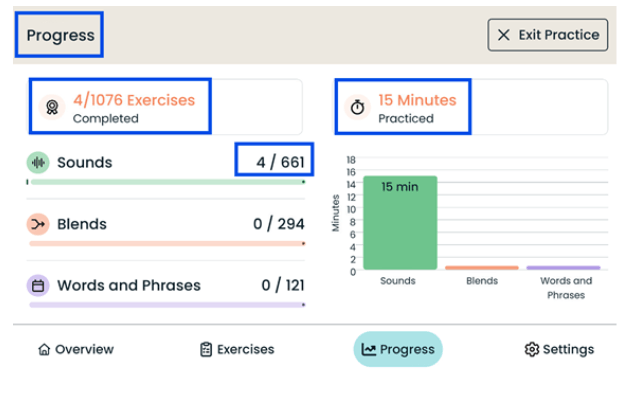
Select Progress at the bottom of the screen to review your practice activity.
The Progress screen shows:
- The number of exercises you have completed.
- Your total practice time.
- The number of exercises completed in each category.
- Minutes practiced in each category
Practice Settings
Select Settings at the bottom of the screen to personalize your Practice experience.
Results Mode
Choose how you want to review your spoken attempts:
- Auto-check: Pronunciation Feedback (Beta) for supported words and phrases.
- Self-check: Allows you to decide how each attempt went.
You can change this selection at any time.
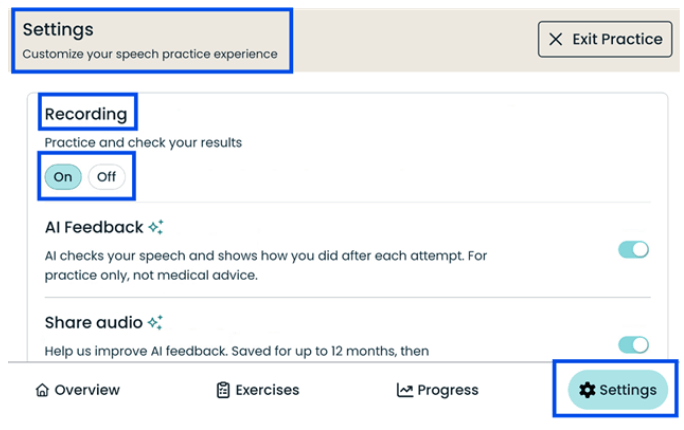
Recording
Turn Recording on to record your spoken attempt and receive results. Practice requires an attempt in both Auto-check and Self-check modes.
Pronunciation Feedback (Beta)
Turn Pronunciation Feedback (Beta) on to use Auto-check with supported words and phrases. This feature provides helpful feedback to support continued practice.
Audio is processed to provide feedback and is not stored or used to train models.
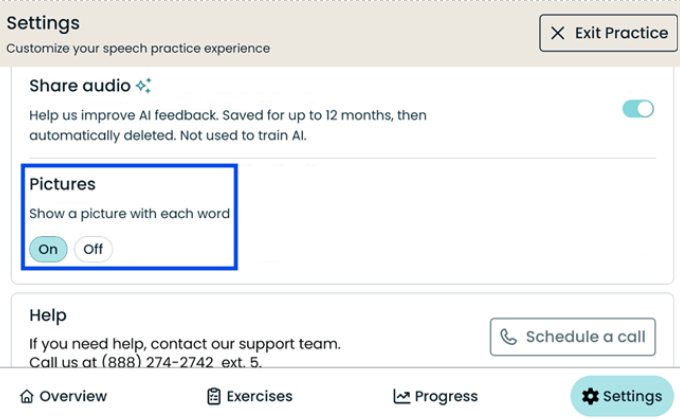
Reference Images
Turn reference images on to display an image with supported practice words and phrases. The image can provide an additional visual cue while you practice.
Get Help
The Settings screen includes contact information for Lingraphica Product Support. Use this information if you need help opening Practice, changing settings, or completing an exercise.
Frequently Asked Questions
Will Practice replace the tools I already use?
No. Practice supplements speech therapy by giving SLPs and people with communication challenges engaging exercises to use together or independently. Lingraphica’s Therapy tool remains available alongside Practice, so you can use both and adopt Practice at your own pace.
Will history from Therapy be carried over to Practice?
No. Practice is a separate tool, so you can start fresh and work toward new goals.
What exercises are currently available on Practice?
Mouth position videos are available now. More exercises will be released over the coming year.
Who can use Practice?
Practice is available for users who have Lingraphica devices with the Hub software.
Do I need an internet connection?
You can browse exercises and use Self-check without an internet connection. Auto-check requires an internet connection to process Pronunciation Feedback (Beta). If connectivity is unavailable, Practice may switch to Self-check automatically.
Why isn’t Auto-check available for every exercise?
Auto-check supports certain words and phrases. Isolated sounds and blends use Self-check because individual sounds cannot be scored reliably.
Is my recorded audio saved?
No. Audio is processed to provide feedback, but it is neither stored nor used to train models.
What happens if Practice cannot access the microphone?
Auto-check requires permission to use the device microphone. If microphone permission is unavailable, Practice may switch to Self-check automatically so you can rate your own attempt.
Can I switch between Auto-check and Self-check?
Yes. In Settings, open Results Mode and choose Auto-check or Self-check. You can change this selection at any time.
Can I continue where I left off?
Yes. From the Overview screen, select Resume to return to the last item you practiced. You can also bookmark exercises and find them again in the Bookmarks section.
How is progress measured?
The Progress screen shows completed exercises, total practice time, exercises completed in each category, and minutes practiced in each category. Accuracy is not tracked in this first release.
