






Conversations Feature — FAQ
Updated:
Talk
Talk
Talk Settings
Page Editor
Create a Card
Create a Folder
Edit a Card or Folder
Copy a Card or Folder
Move a Card or Folder
Enabling and Disabling the Editor
Search Not Displaying Any Results
Missing Cards and Folders
Dual Language Mode
Search for Cards and Folders
Message Window
Alternative Pronunciation
Therapy
Therapy
News
News
Community
Join In
Table of Contents
General
Q: What is the Conversations feature?
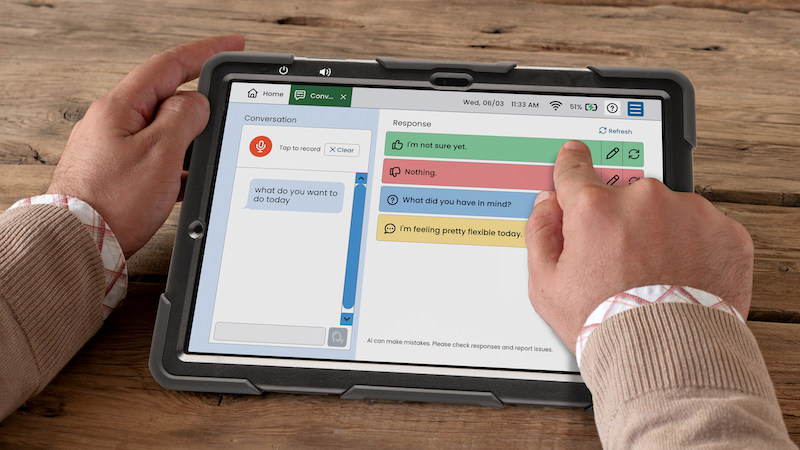
A: Conversations is a communication support tool that empowers AAC users to participate in real-time conversations. This tool transcribes a communication partner’s speech and provides AI-supported response suggestions that the AAC user can choose to review, edit, and speak.
Q: Can Conversations be used to answer questions or look up information?
A: No. Conversations is designed to help users respond to a communication partner — it is not a search engine or general knowledge assistant. If a client asks it something like “What’s the weather?” or “Who won last night’s game?”, the response will likely be unhelpful. For information queries, use the device’s browser or other apps.
Q: Does the AI learn my communication style over time?
A: No. The AI starts from a blank slate every session and does not retain anything from previous conversations. It will not become more personalized or accurate over time on its own. Personalization comes from the user’s choices within each session (keyword selection, editing) and from filling out the About Me section in Settings.
Q: Does the Conversations feature require an internet connection?
A: Because it uses AI to generate responses, Conversations requires an active internet connection (Wi-Fi or cellular) to function. Check the device’s connection status (top right of the screen) if the feature isn’t working as expected.
Q: Is the conversation saved after the session?
A: No. The conversation log is not saved after you leave the Conversations screen or tap Clear. Each session starts fresh.
Q: Can Conversations be used in languages other than English?
A: At this time, Conversations is only available in English.
Recording
Q: What kinds of questions or prompts get the best AI responses?
A: Specific, choice-based questions work much better than open-ended ones. For example, “Do you want to go out for dinner tonight or eat in?” gives the AI clear context and produces a natural, specific response. A vague question like “What do you want to do?” will tend to produce a generic answer.
Q: The transcript looks wrong — the device misheard what was said. What should I do?
A: Tap Clear to remove the incorrect transcript and try recording again. Make sure the communication partner speaks clearly and directly toward the device, and that background noise is minimized. You can also long press an individual piece of the transcript and then press delete to remove it.
Q: The recording stops too soon / too late. How do I fix this?
A: If recording stops too early, turn off “Stop Recording Automatically” in Settings → Conversations Settings → Usage Controls. If you prefer automatic stop, turn it on.
Q: What do I do if there’s a lot of background noise?
A: Move to a quieter location if possible. If not, have the partner speak very close to the device’s microphone. Consider using a different communication mode (Talk, Type) if noise consistently causes transcription errors.
Responses and Key Words
Q: The AI response doesn’t sound like the user. What can I do?
A: With Edit Mode enabled, tap into the text input bar (bottom of the left panel) and edit the response before speaking. Encourage the user to think of AI suggestions as a draft they can personalize, not a final answer.
Q: What’s the difference between the four response type buttons?
A: Agree generates a positive/affirming response. Disagree generates a contrasting or correcting response. Ask generates a follow-up question. Reply generates a general conversational reply.
Q: The Key Words don’t seem relevant to the conversation. What should I do?
A: Tap the Refresh (↻) button next to “Key Words” to generate a new set. If they’re still off, the transcription may be inaccurate — check the transcript in the left panel first.
Q: Why does the AI sometimes suggest something unrelated to what was said?
A: This usually means the transcription was inaccurate. Check the left panel transcript first. If the transcript is correct but responses are still off, use Refresh. If the response was genuinely problematic, use the Report feature.
Q: Can I use multiple keywords at once?
A: Yes, you can select multiple keywords in either mode (Multiple Responses or One at a Time).
Settings
Q: What does “Auto Record After Speaking” do?
A: When enabled, the device automatically starts listening for the partner’s response right after the user speaks — creating a seamless back-and-forth flow without extra taps.
Q: Should I turn on “Stop Recording Automatically”?
A: It depends on the device user and communication environment. It reduces taps but may cut off speech early in conversations with natural pauses. Test it in a real conversation before deciding.
Q: What are my response choices (One at a Time/Multiple)?
A: Multiple Responses display multiple AI-supported response choices simultaneously, so the user can compare and pick one. It can be helpful for users who want more control, but may increase cognitive load for some. This setting is off by default.
Q: What is Edit Mode?
A: When Edit Mode is toggled on, a user may make changes to the AI-supported response choices before speaking.
Reporting
Q: When should I use the Report button?
A: Report a response when it is inaccurate, inappropriate, confusing, or raises privacy concerns.
Q: Will I see a history of reports I’ve submitted?
A: No. There is no in-app report history. After submitting you receive a confirmation message and the report is sent to the Lingraphica team.
Q: What happens to my report?
A: Reports are reviewed by Lingraphica’s team and used to improve the AI. You won’t receive an individual response, but the feedback contributes to ongoing improvements.
Troubleshooting
Q: The Speak button isn’t appearing. What’s wrong?
A: The Speak button appears once an AI response has populated the text input bar. Make sure a recording has been completed and a response type or keyword has been selected. If it still doesn’t appear, try refreshing the suggestions or re-recording.
Q: Conversations is generating strange or off-topic responses consistently.
A: This often indicates a transcription problem. Check the left panel transcript first. If transcripts are accurate but responses are still off, use the Report feature and try again.
Q: The device user accidentally spoke the wrong response. What now?
A: There is no undo for a spoken response. Use the text bar to type a clarifying or corrective message, then speak that.
