




Improved Help Button
Updated:
Talk
Talk
Talk Settings
Page Editor
Create a Card
Create a Folder
Edit a Card or Folder
Copy a Card or Folder
Move a Card or Folder
Enabling and Disabling the Editor
Search Not Displaying Any Results
Missing Cards and Folders
Dual Language Mode
Search for Cards and Folders
Message Window
Alternative Pronunciation
Therapy
Therapy
News
News
Community
Join In
Table of Contents
Help
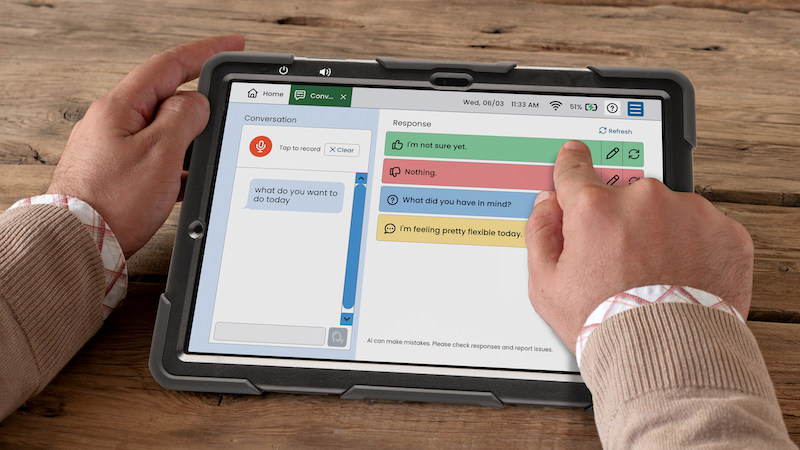
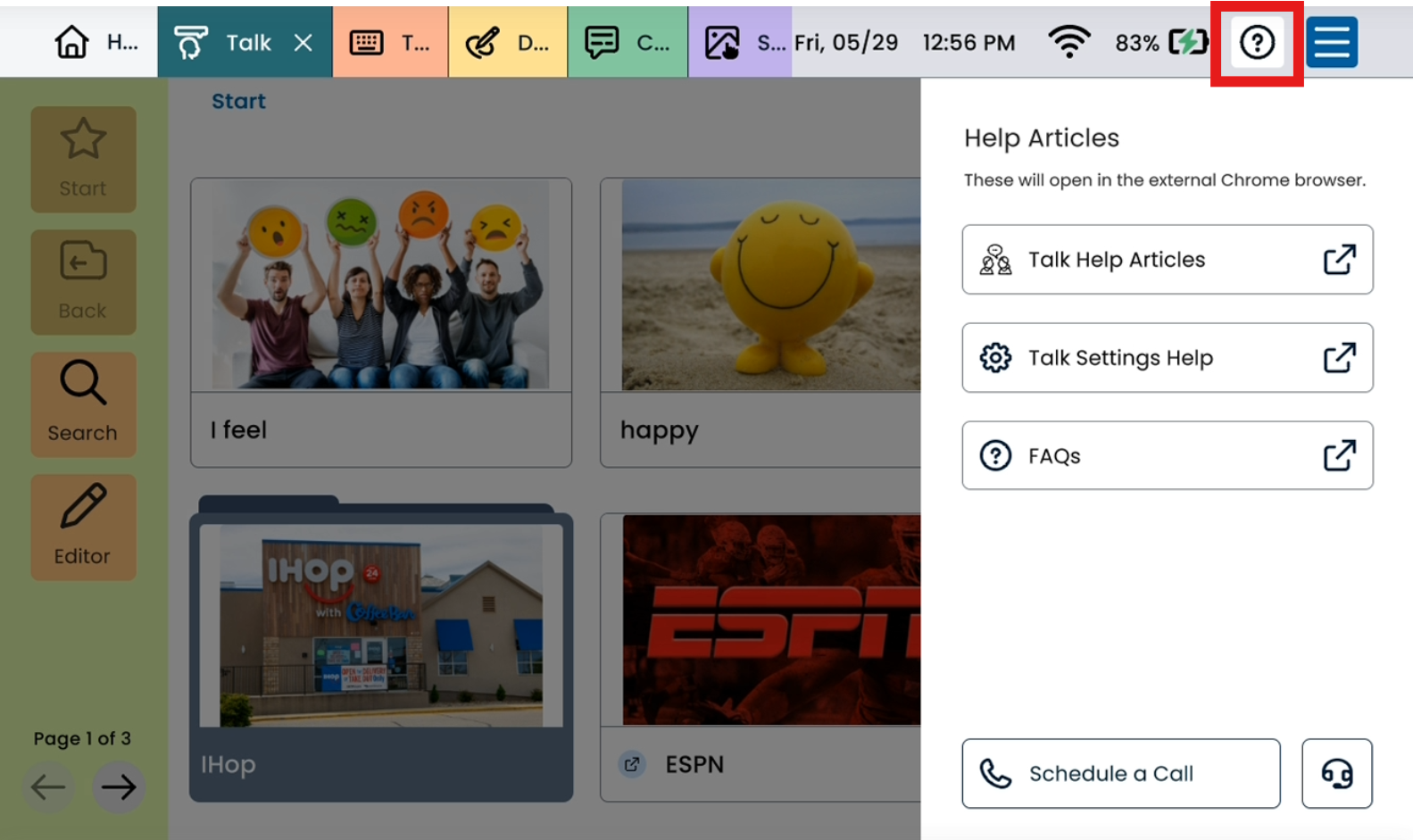
The Help button has been redesigned and relocated to make on-device support faster and easier to access. It’s now available across all Hub apps (Home, Talk, Type, Draw, Media, and Scenes) and opens as a slide-in panel from the Info Bar.
What’s in the Help Panel
When a user taps the Help button, a slide-in panel appears with contextual support options relevant to the current app:
-
Knowledge Base articles — links to app-specific help content
-
FAQs — answers to common questions
-
Schedule a Call — opens a scheduling pop-up to book time with the support team.
-
Remote Support — launches TeamViewer for assisted troubleshooting
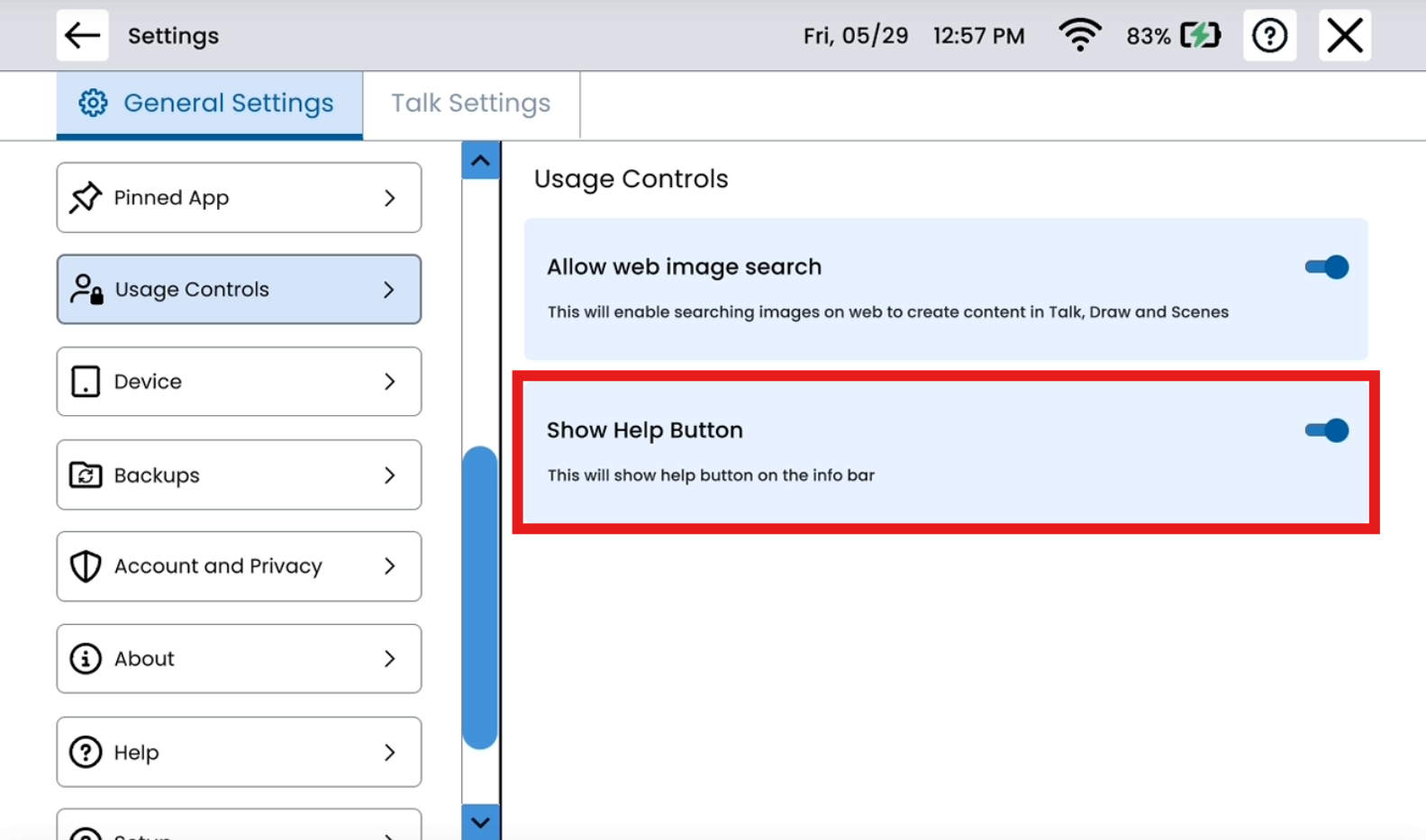
Toggling the Help Button On/Off
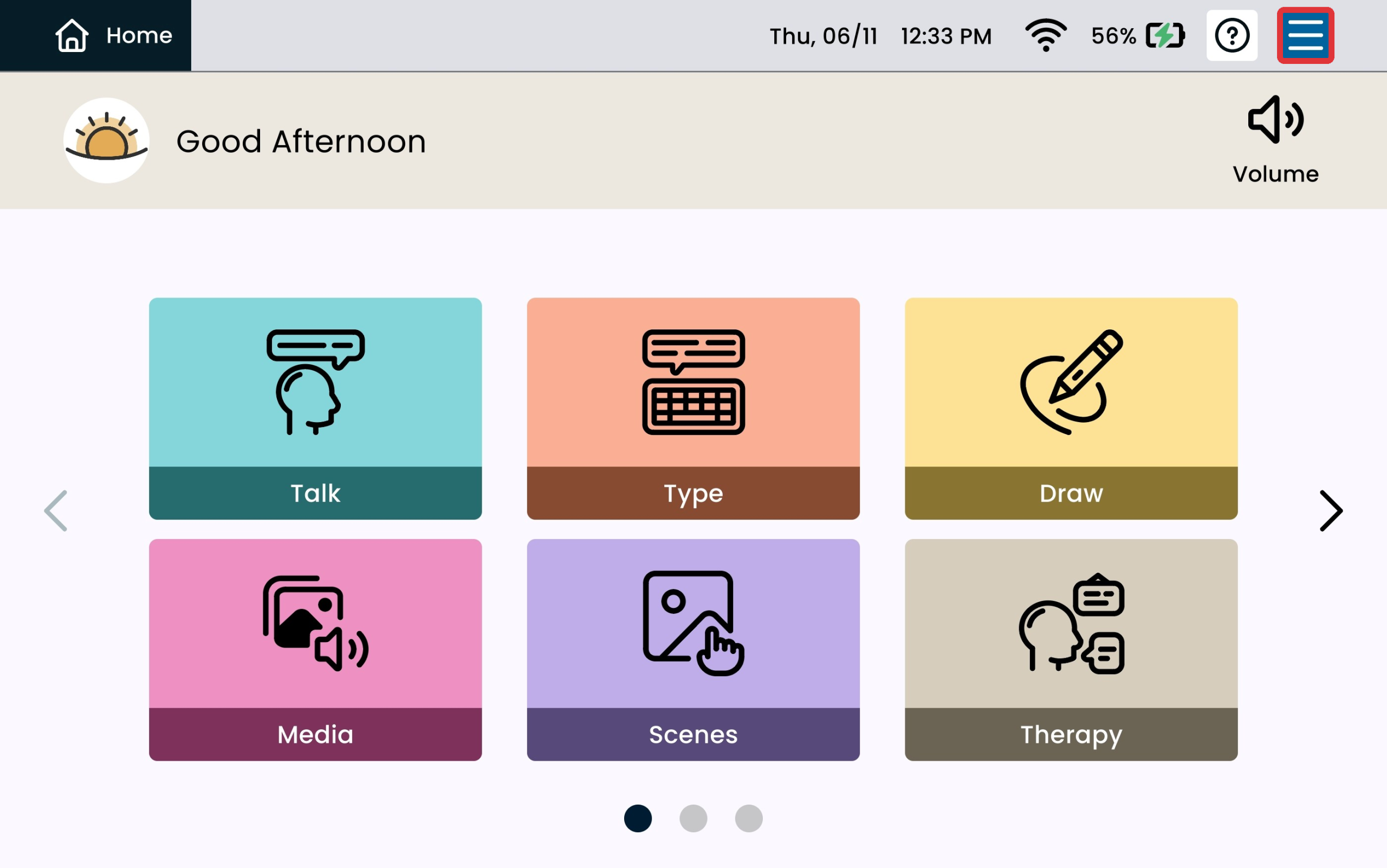
Select the blue settings menu button on the top right.
Select General Settings.
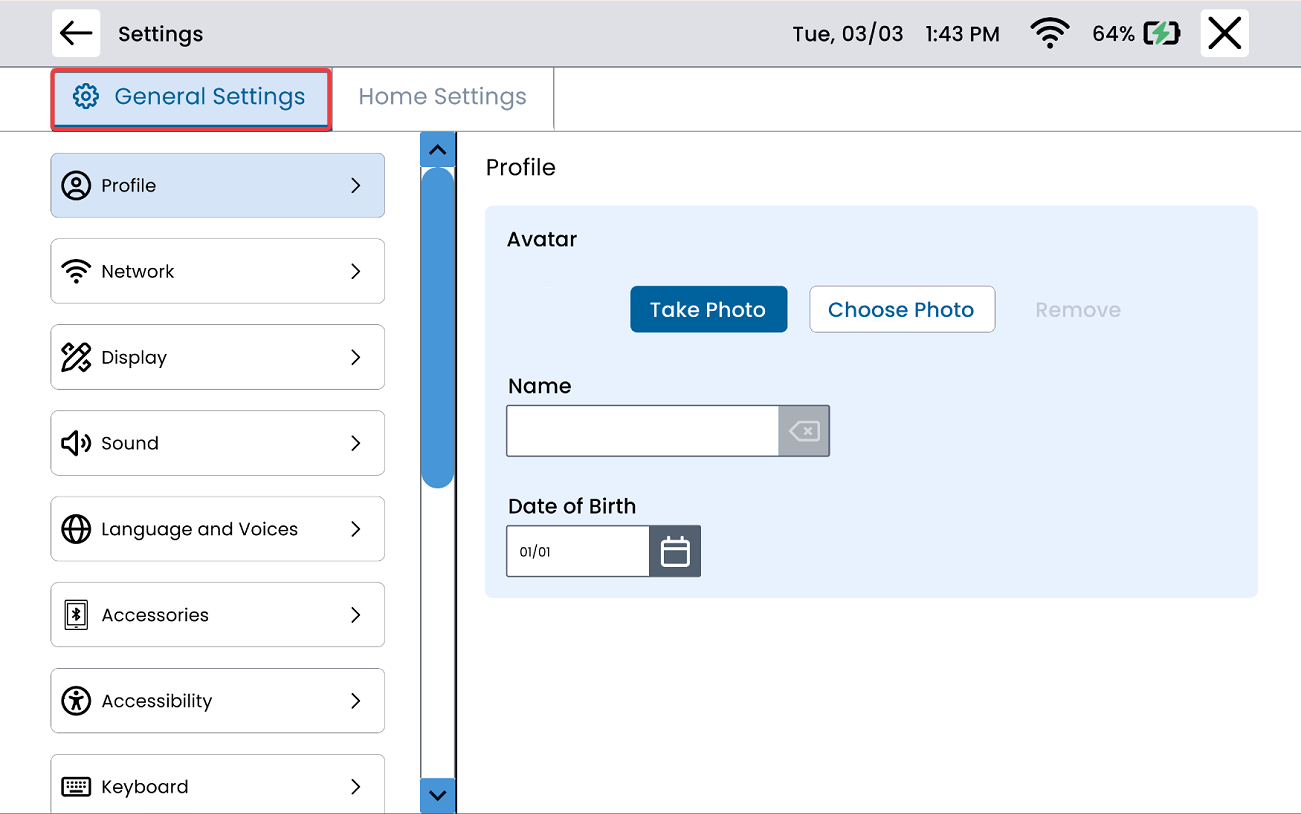
Scroll down on the left panel and select Usage Controls, and toggle Show Help Button.