





How to Have a Conversation — Step-by-Step
Updated:
Talk
Talk
Talk Settings
Page Editor
Create a Card
Create a Folder
Edit a Card or Folder
Copy a Card or Folder
Move a Card or Folder
Enabling and Disabling the Editor
Search Not Displaying Any Results
Missing Cards and Folders
Dual Language Mode
Search for Cards and Folders
Message Window
Alternative Pronunciation
Therapy
Therapy
News
News
Community
Join In
Table of Contents
Step 1 — Open Conversations
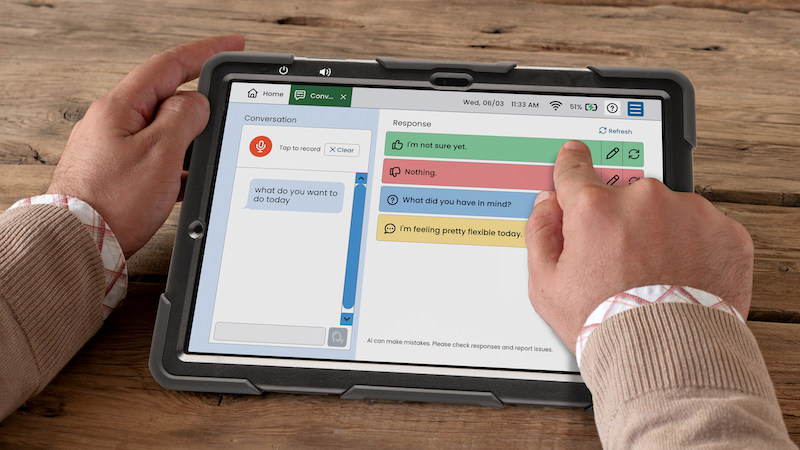
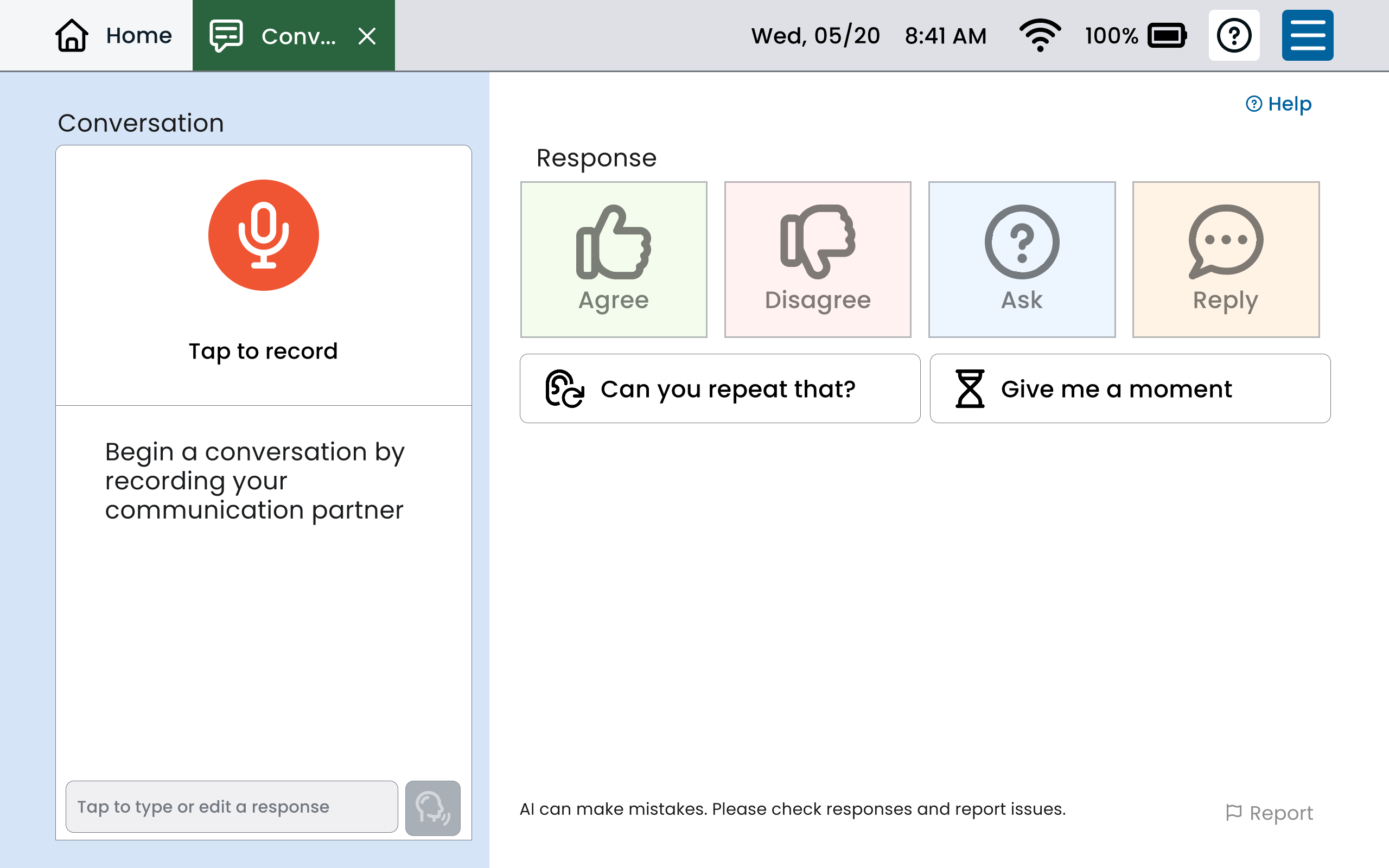
From the Home screen, tap the Conversations tile (teal/green). The screen opens to the Conversations interface. The left panel shows the microphone button and the prompt: “Begin a conversation by recording your communication partner.”
Step 2 — Record the Communication Partner
When the communication partner is ready to speak, tap the orange microphone button (“Tap to record“).
-
The button changes to a stop icon and the label reads “Recording…”
-
The partner should speak at a normal pace and volume, directed toward the device.
-
When the partner is done speaking, tap the stop button to end the recording.
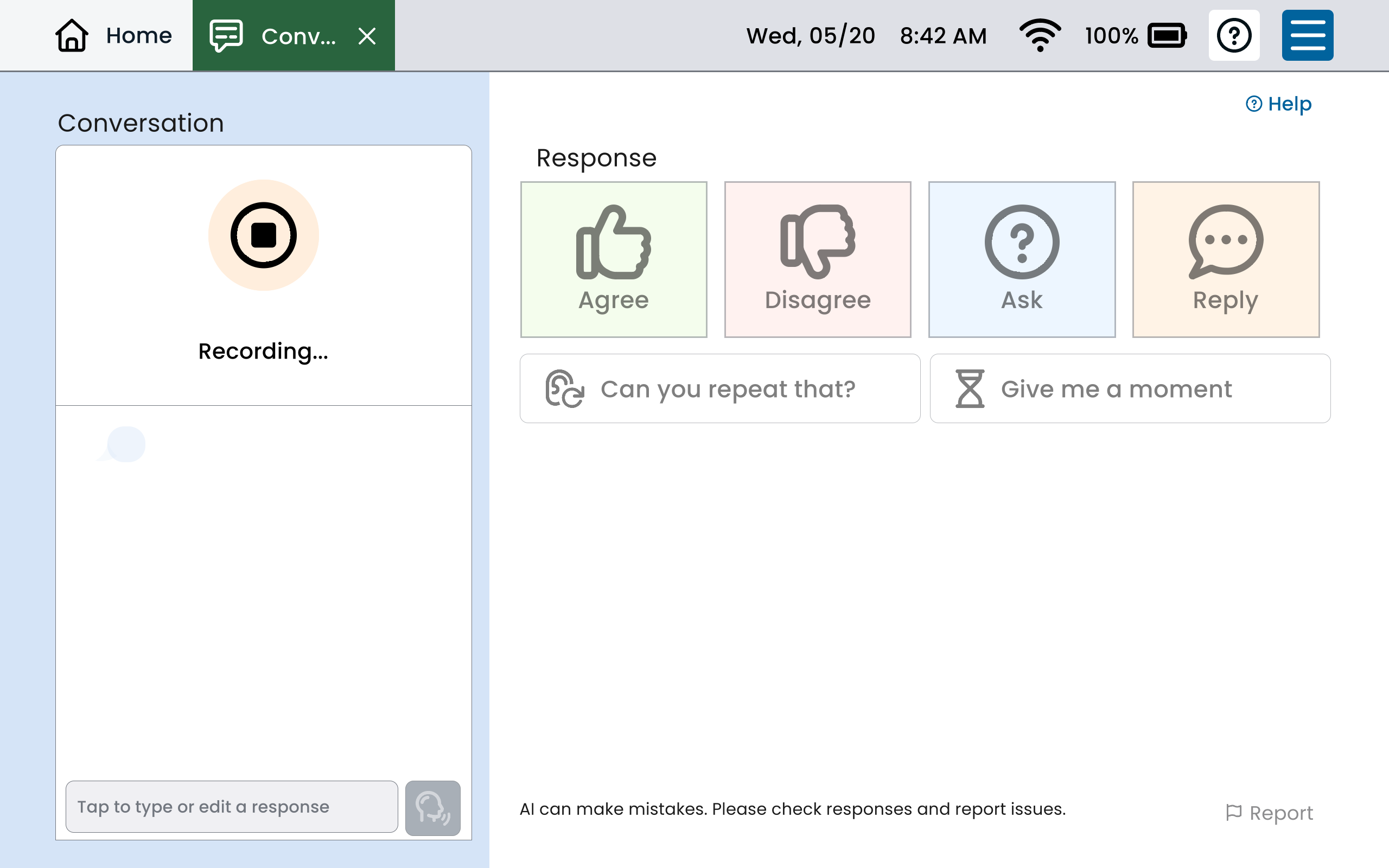
Tip: If Stop Recording Automatically is turned on in Settings, the device stops recording when it detects a significant pause — reducing the number of taps required.
Step 3 — Review the Transcript
After recording stops, the partner’s spoken words appear as a text bubble in the left panel (the Conversation Log). Review the transcript to confirm it was captured accurately. If it looks wrong due to mishearing or background noise, tap Clear and try recording again.
Step 4 — Select a Response objective
The right panel displays response types to help guide the generation of a reply that matches the user’s intent. Response type buttons (Agree, Disagree, Ask, Reply)
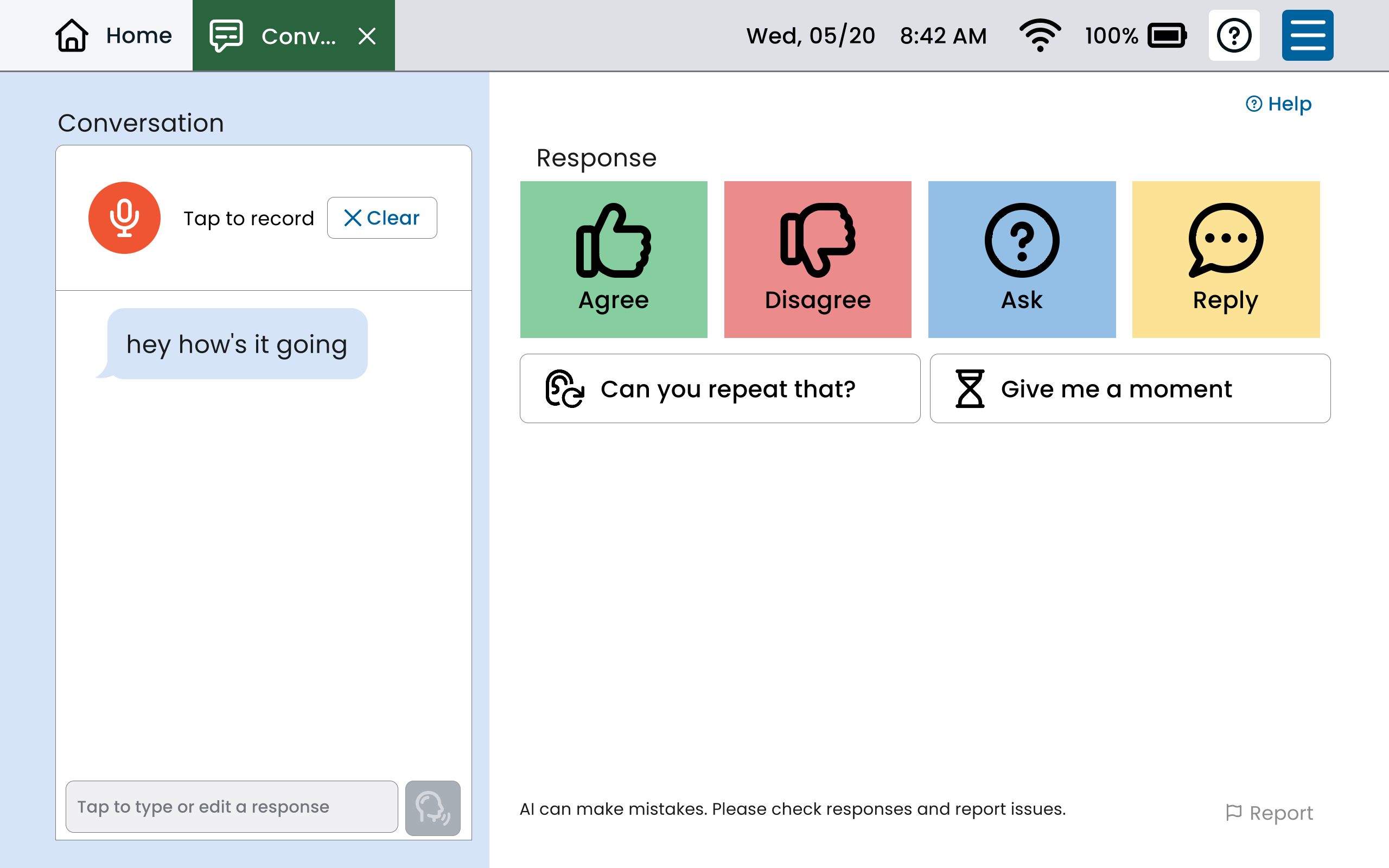
Important: Review the suggested response before tapping Speak. If it doesn’t fit the context, tap a different response button, tap a keyword, tap Refresh to regenerate, or edit the text manually.
Step 5 — Refine the Response (Optional)
Using Key Words
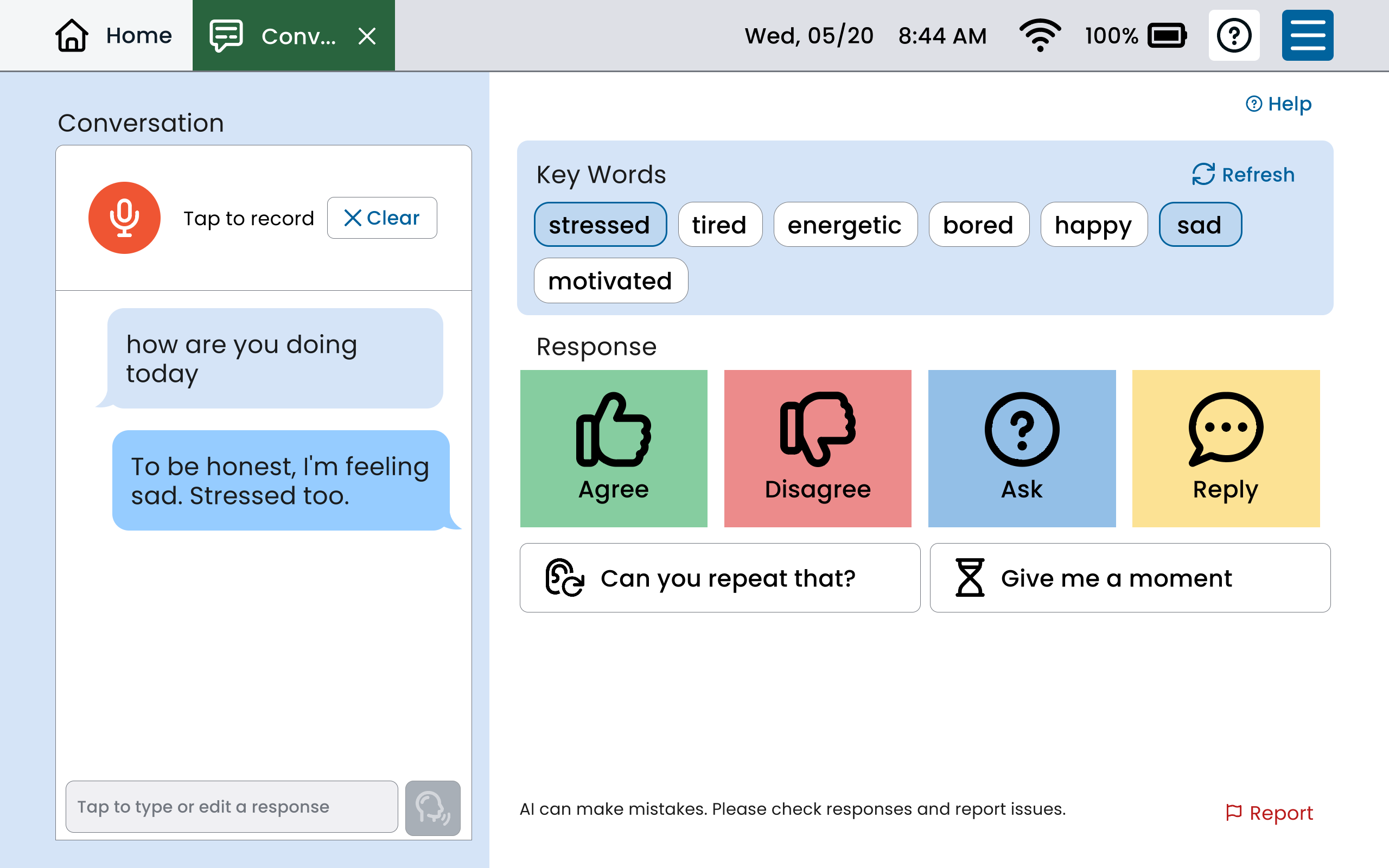
If key words are turned on in the settings, they will appear over the response types. Tap any keyword to select it, then select a response type. The AI generates a new response incorporating that keyword. Selected keywords appear with a highlighted border.
Refreshing Suggestions
Tap the ↻ Refresh icon next to “Key Words” or next to a response type button to generate a fresh set of options. There is no limit on refreshes.
Manual Editing
Tap the text input bar at the bottom of the left panel to type or edit the response directly before speaking.
Step 6 — Speak the Response
When the response in the text box is ready, tap the Speak button (blue button with a speaker icon, bottom right of the left panel). The device will speak the response aloud using text-to-speech.
Step 7 — Continue the Conversation
After the response is spoken, the conversation log updates to show the exchange and resets for the next turn. Record the partner’s next statement by tapping the microphone again.
Step 8 — End the Conversation
When the conversation is finished, tap Clear to reset the log, or tap the Home button to return to the main menu. Conversation history is not saved after leaving the Conversations screen.
