






Alternative Pronunciation
Updated:
Talk
Talk
Talk Settings
Page Editor
Create a Card
Create a Folder
Edit a Card or Folder
Copy a Card or Folder
Move a Card or Folder
Enabling and Disabling the Editor
Search Not Displaying Any Results
Missing Cards and Folders
Dual Language Mode
Search for Cards and Folders
Message Window
Alternative Pronunciation
Therapy
Therapy
News
News
Community
Community
With Alternative Pronunciation users can add an alternative pronunciation to words in a Spoken Message of a Card or Folder on your Hub device, allowing personalized and precise control over how they are pronounced when selected.
To add alternative pronunciation:
- Add your spoken message as you typically would
- Select the Alternative Pronunciation option located on top of the Spoken Message text box
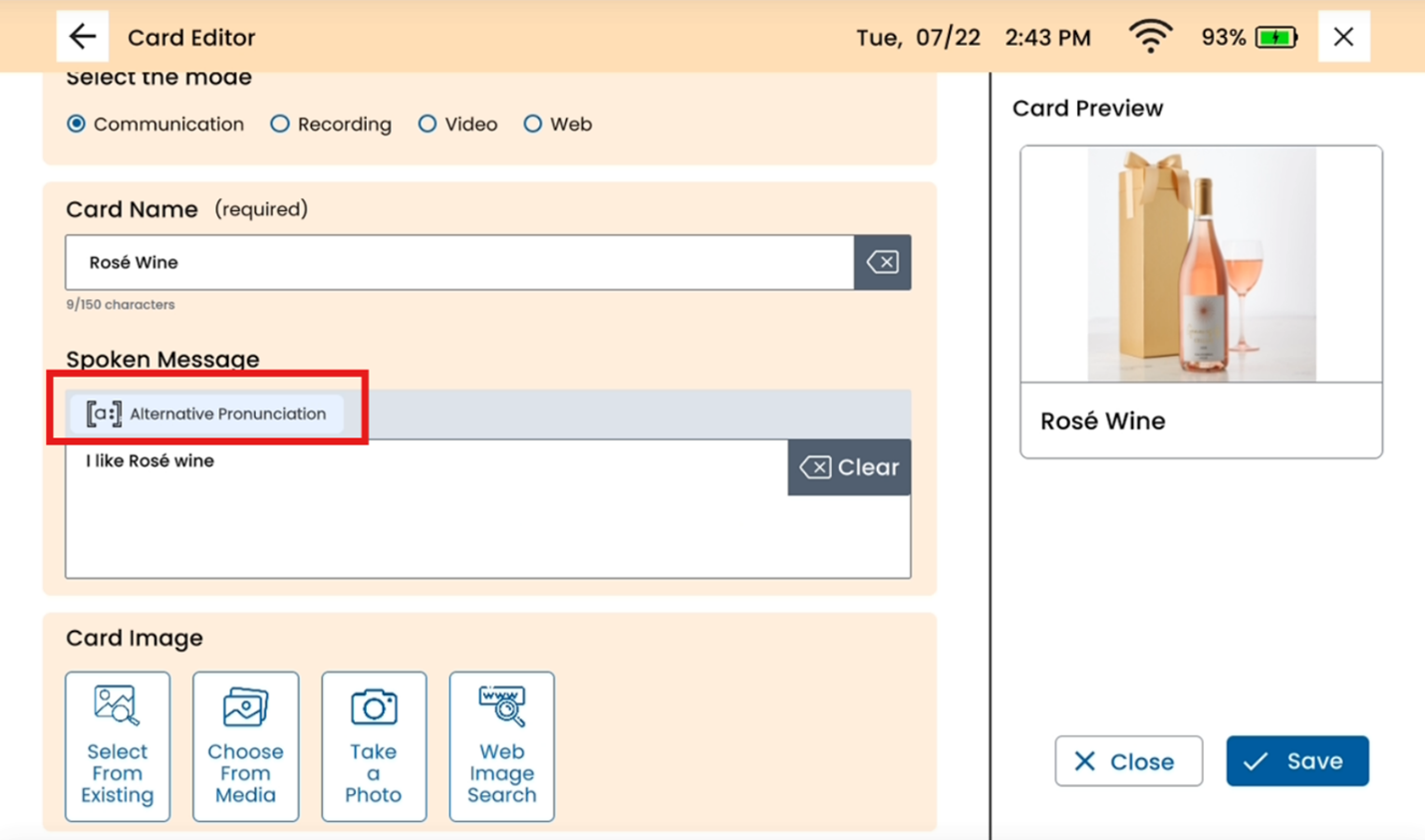
- Tap the word that you would like to add an alternate pronunciation for
- Type in the preferred pronunciation
You can tap Speak to preview or tap anywhere outside of the pop-up box when finished
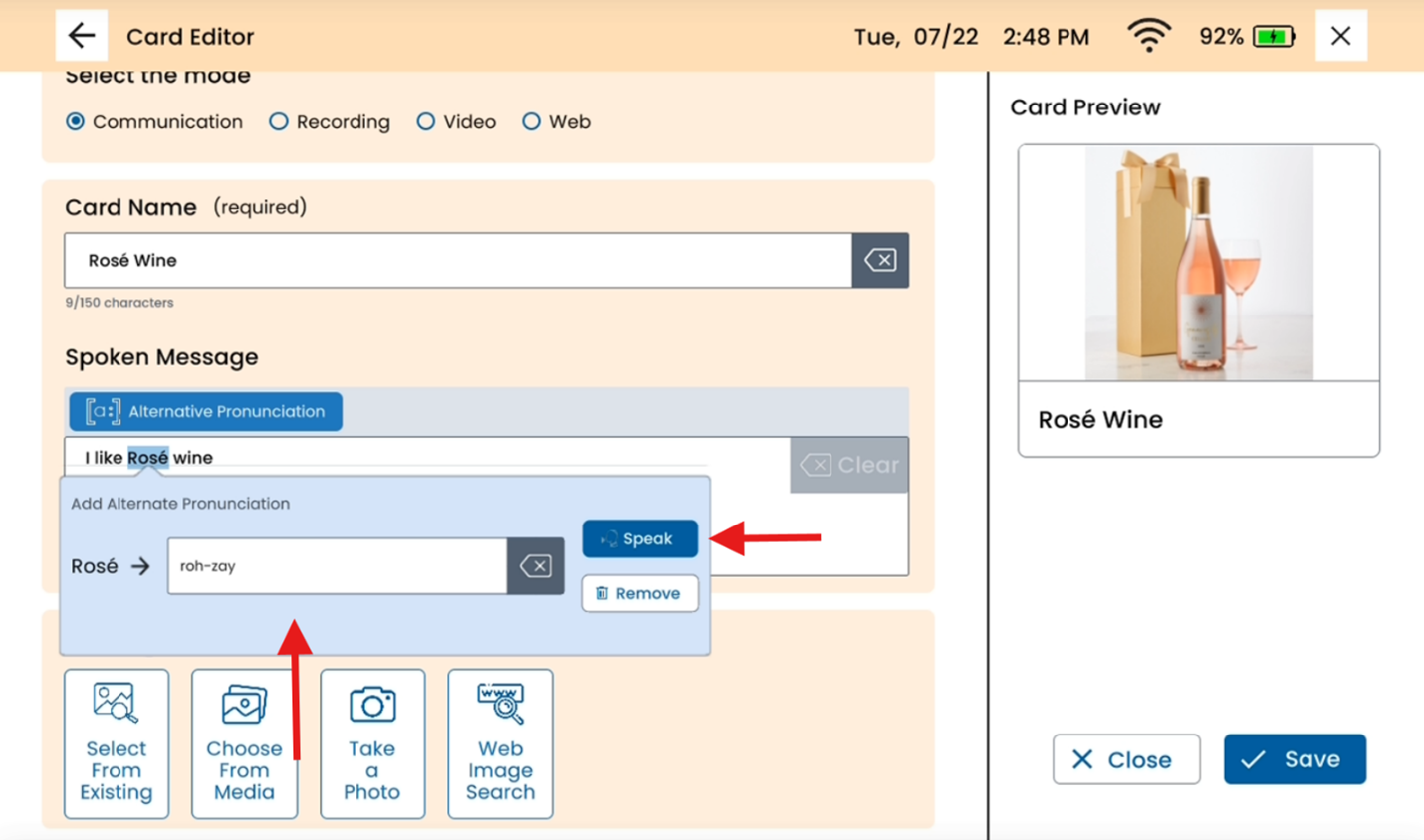
- You can add an alternative pronunciation to more than one word in the spoken message by selecting the word.
- All words that have an alternative pronunciation will be highlighted when the “Alternative Pronunciation” setting is selected.
- You can only add an alternative pronunciation to one word at a time and not phrases.
- You must press the “Alternative Pronunciation” button again to turn the feature off if you would like to edit the Spoken Message.
